

Do you need to do anything?
- The list is empty (“Ingen netblokke fundet”) – there is no restriction, and you don’t need to do anything.
- The list has one or more IP addresses – then Verbu’s IP address must be added.
Steps
1
Open Netblokke
Sign in at
admin.one-connect.dk, go to Indstillinger (settings), and pick Netblokke in the menu on the left.2
Check the list
Does it say “Ingen netblokke fundet” (no netblokke found)? Then you’re done – there is no restriction.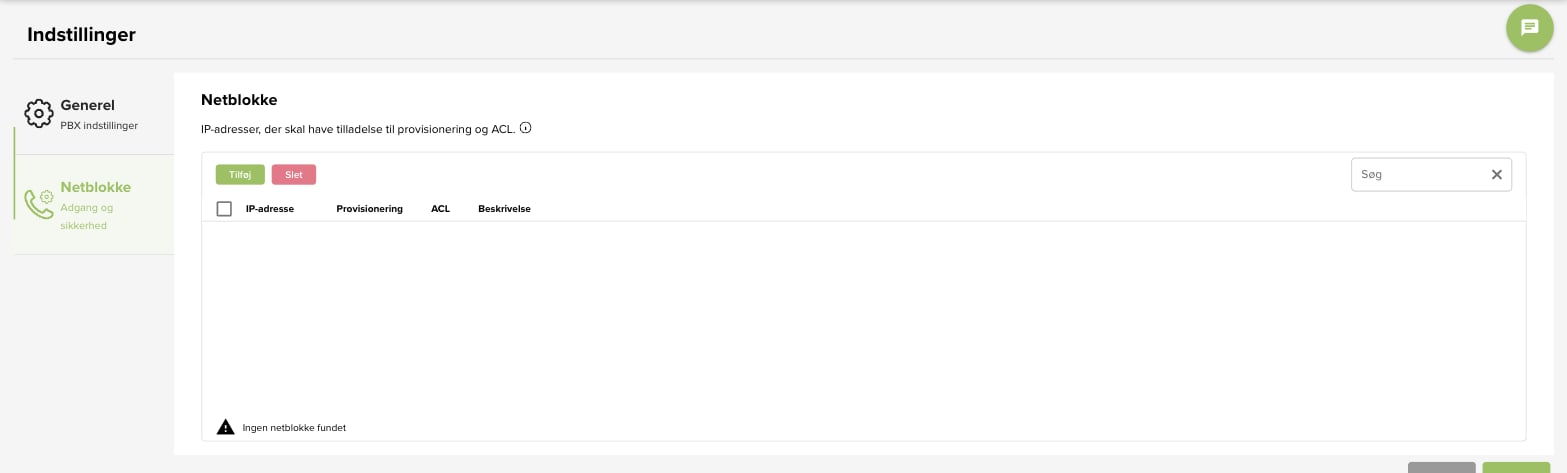
3
Add Verbu's IP address
Click Tilføj (add). A new row with 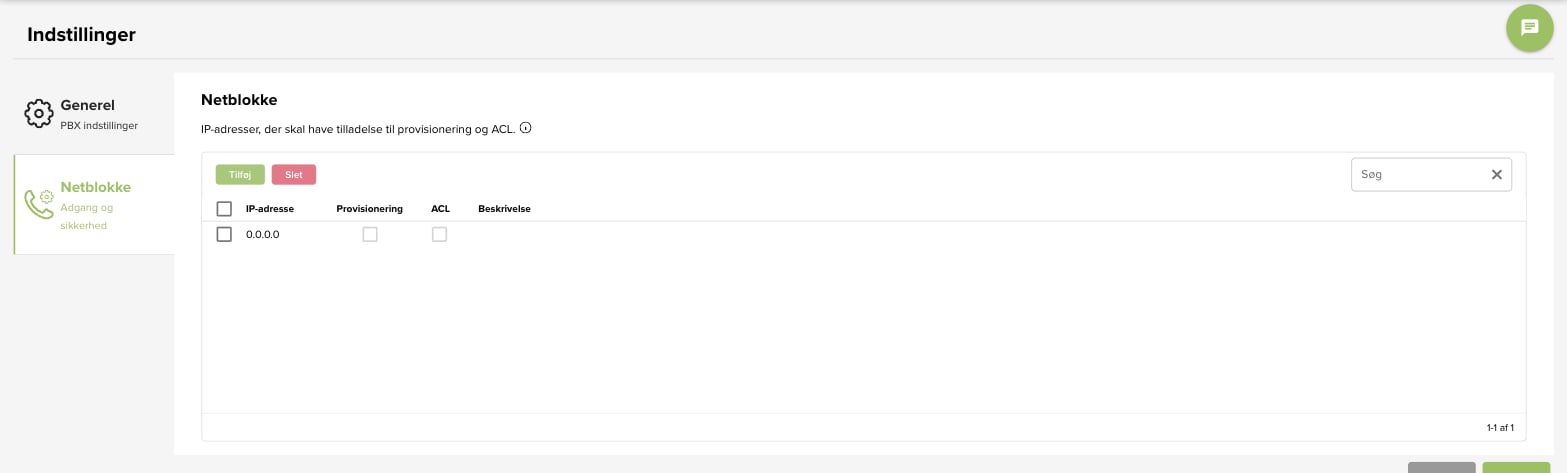
0.0.0.0 appears. Click the IP address and type instead:46.224.173.236Tick ACL, and write something like “Verbu” in Beskrivelse (description) so you remember what the row is for.4
Save
Click Gem (save). Verbu can now register, and the agent can answer calls.
Common scenarios
The Verbu connection won't sign in
The Verbu connection won't sign in
Are the username and password correct, but registration still fails? Then netblokke is the most likely cause. Check that
46.224.173.236 is on the list with ACL ticked, and that the change was saved.We added the IP address but it still doesn't work
We added the IP address but it still doesn't work
Check that the IP address is typed exactly right, and that you clicked Gem afterwards. If it still doesn’t work, drop Verbu support a line – we’ll look at it together with you.
Next steps
- Set up users and a queue: Parallel calls with OneConnect
- The basic setup: Unitel