

What you’ll need
- A Gecko Booking account
- An API key from Gecko Booking
How to create the API key
Once API access is enabled, create the key like this:- Open Settings in Gecko Booking.
- Click Adgangs- og sikkerhedsindstillinger (Access and security settings).
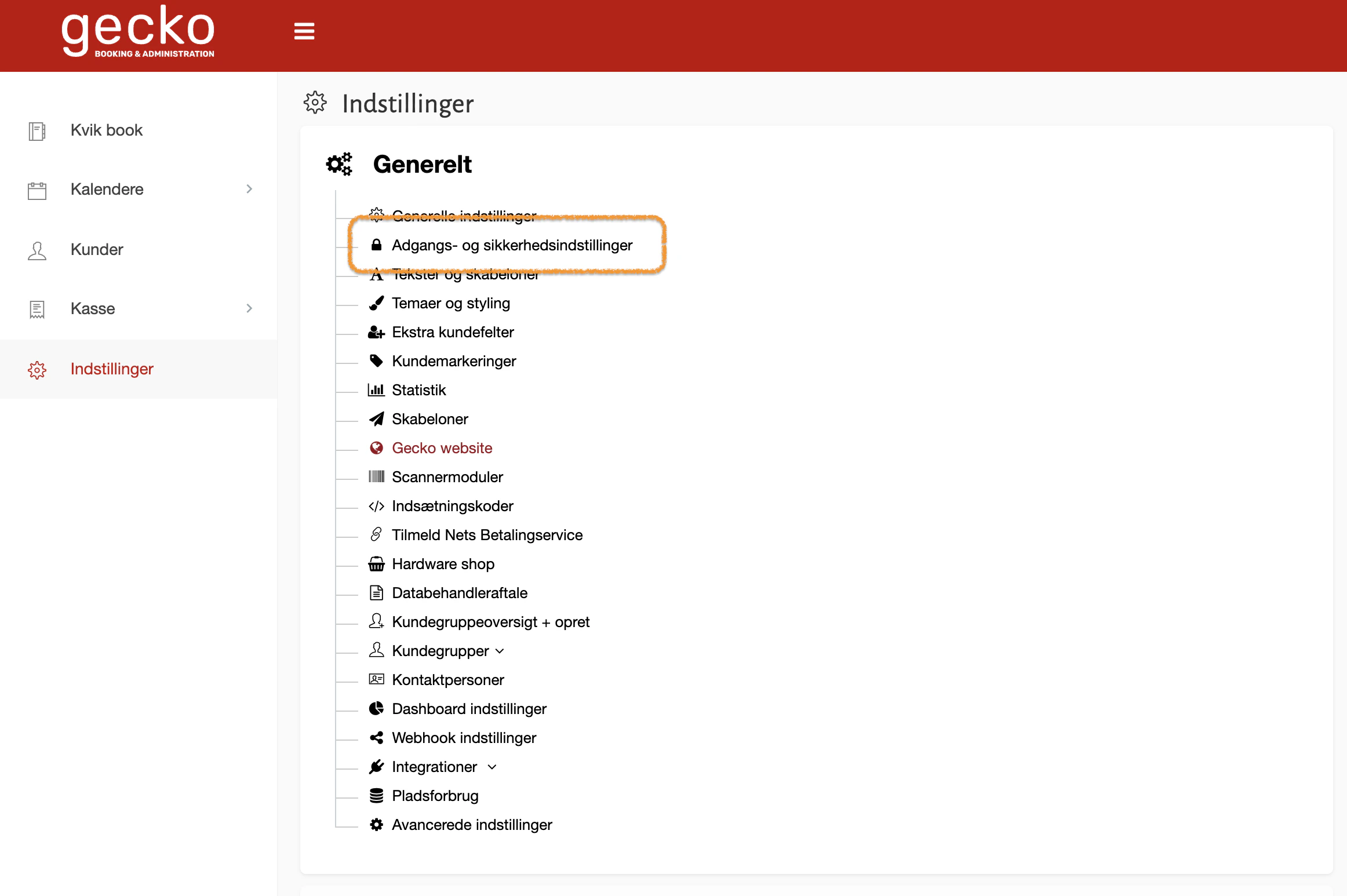
Access and security settings in Gecko Booking
- Under API-nøgler (API keys), create a new one.
- Use the following permissions:
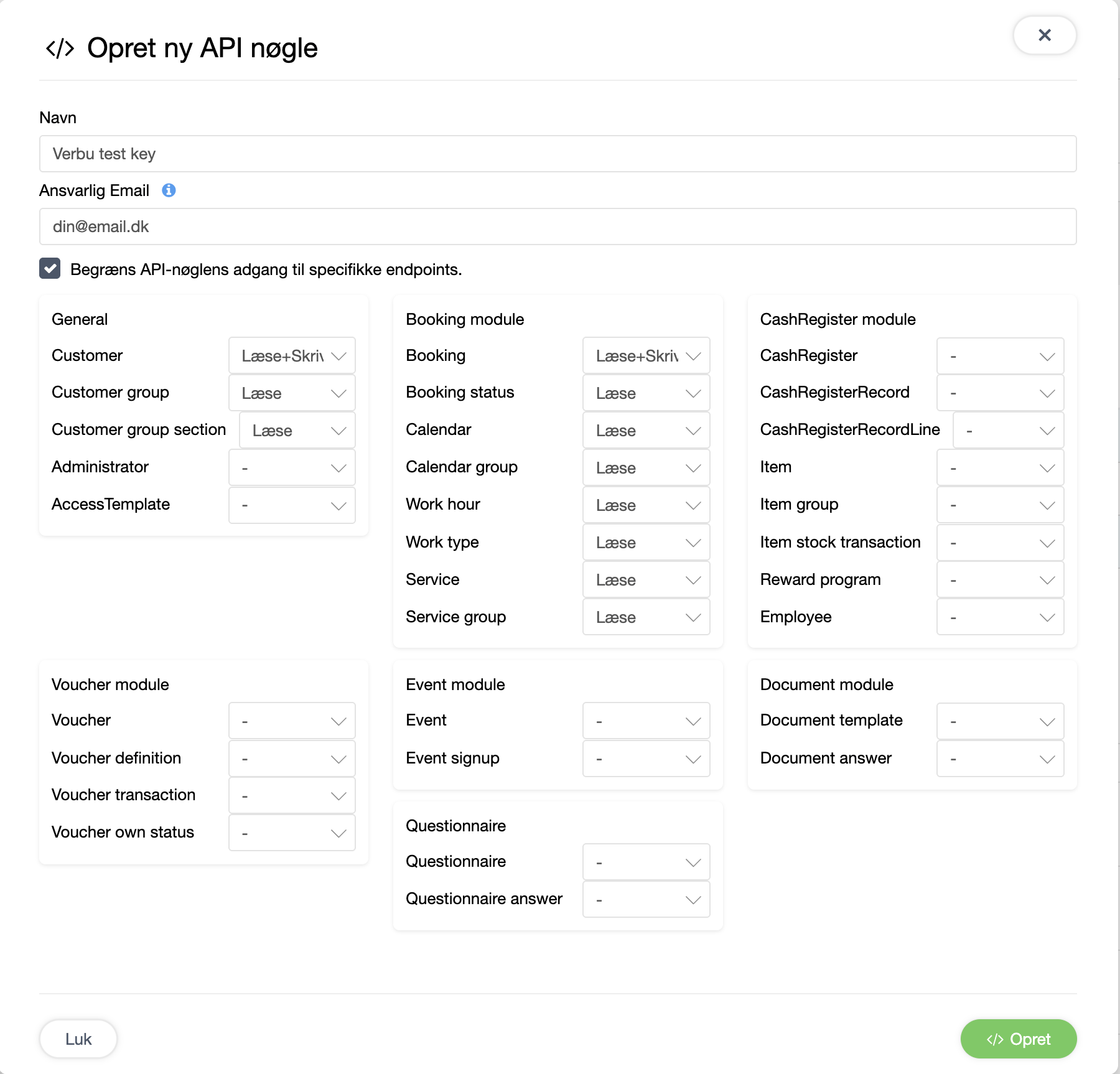
API key permissions. Customer should be Read+Write, the rest Read-only
- Copy the API key into Verbu.
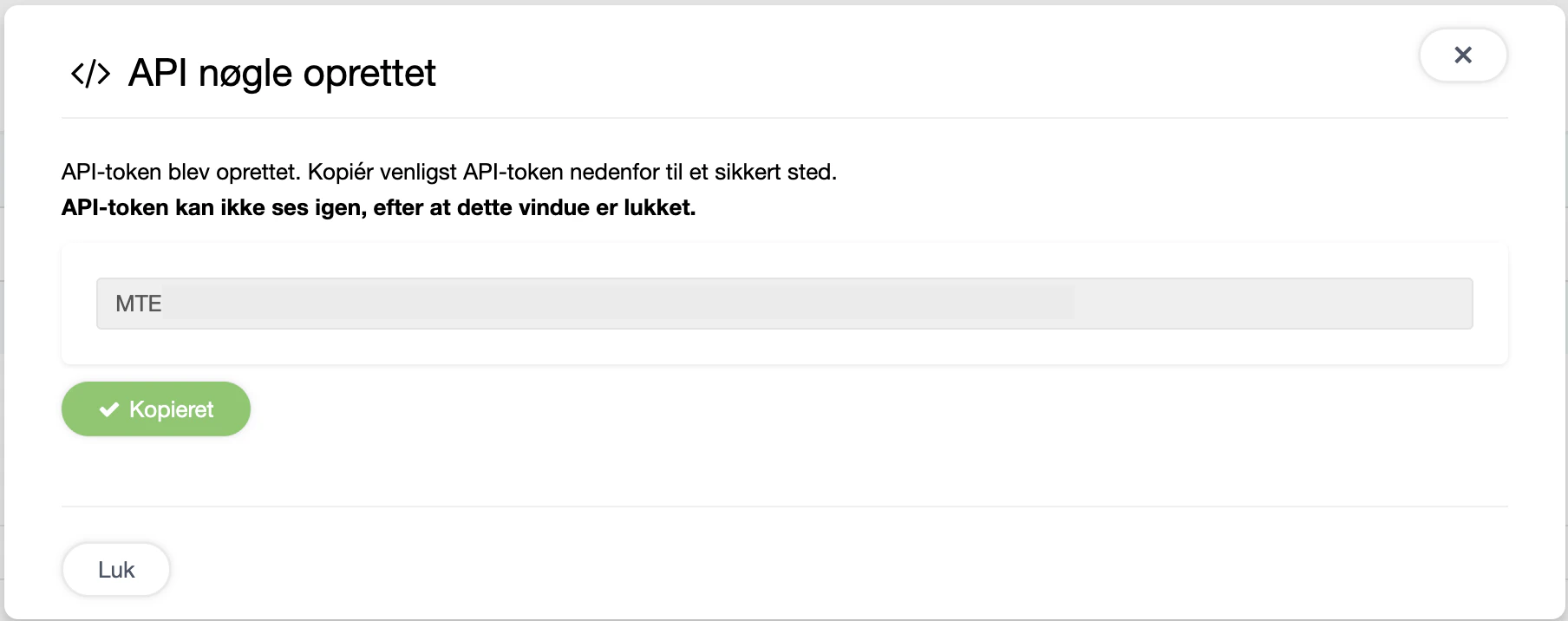
The API key is only shown once, so copy it immediately
How to connect Gecko Booking to Verbu
- Open the agent, click Integrations at the bottom of the menu, and go to the Settings tab.
- Click Connect next to Gecko Booking.
-
In the Server URL field, paste the URL from your browser while you’re logged into Gecko Booking - only up to and including
.dk. For examplehttps://app.geckobooking.dk. - Paste your API key and click Connect.
- The Appointment management setup bundle (book, reschedule and cancel) installs automatically. If it doesn’t, click Install next to it under Setup bundles.
- Done!
Setting up staff-specific services
By default, any staff member can be booked for any service. If a service should only be booked with specific staff members, open the integration and set it up under Staff restrictions per service in the Configuration section. If you’d rather have our help, email us at hello@verbu.com. It only takes a few minutes.How it sounds on a call
Caller: Hi, I’d like a haircut on Tuesday. Agent: Let me check. I have a slot at 10:00 with Maria or 14:30 with Anders. Which works better? Caller: 14:30, please. Agent: Can I take your name and a phone number? Caller: Lars Sørensen, 22 33 44 55. Agent: Booked. You’ll get a confirmation by SMS. Anything else?Everything in that flow happens in Gecko Booking, live, while the user is on the line.
Troubleshooting
The agent suggested a slot that isn't actually available
The agent suggested a slot that isn't actually available
Click Refresh on the integration so Verbu re-reads your calendars.
Bookings end up in the wrong customer group
Bookings end up in the wrong customer group
Open the integration and change the Default customer group.
The agent can't find existing customers
The agent can't find existing customers
The agent looks up customers by phone number first. If the user is calling from a different phone, the agent will ask for a name or email instead.
I get an error when I click Connect
I get an error when I click Connect
Check that the URL was copied correctly, only up to and including
.dk, with no trailing slash or extra text. And make sure the API key was pasted without spaces.Removing the integration
Click Disconnect in the right-hand column and confirm. Verbu forgets the key and stops calling Gecko Booking. Your bookings in Gecko are untouched.Next steps
- Talk to the agent under Test → Live test
- Set up Pronunciation for staff names
- Add service descriptions to Agent knowledge and training