> ## Documentation Index
> Fetch the complete documentation index at: https://help.verbu.com/llms.txt
> Use this file to discover all available pages before exploring further.
# Parallel calls with OneConnect
> How to set up users and a queue in Unitel / OneConnect so your Verbu agent can answer several calls at the same time.
In OneConnect, Verbu signs in as a regular user – just like a desk phone or softphone would. And here's the important detail: **a user in OneConnect can only handle one call at a time**.
If the agent should answer several calls in parallel, it needs several users to answer from. The number of users directly controls how many calls the agent can take at once.
## How it fits together
* **1 user = 1 concurrent call**
* **2 users = 2 concurrent calls** – and so on
* The users live inside a **queue** with the **ring all** strategy
* Incoming calls are sent to the queue – not to a single user
When the queue rings all users at once, Verbu picks up on a user that's free. If two customers call at the same time, the agent takes both – one on each user.
Start with **at least two users** so the agent can answer two calls in parallel. For most businesses, three to five users is plenty. If your call volume is very high, just add more.
## Before you start
You need:
* Access to the OneConnect admin at `admin.one-connect.dk` (or the contact details for your Unitel reseller)
* Your Verbu contact, who connects the users to Verbu
Does your OneConnect use **netblokke** (IP access lists)? Then Verbu's IP address must be added before any of this works. See [Netblokke and IP access](/en/pbx/unitel-netblokke).
## Steps
Go to **Brugere** (users) and create one user for each parallel call the agent should handle. Each user gets its own local number, for example **200** and **201**.
Then add the users to the SIP connection in Verbu – one row per extension under **OneConnect SIP accounts**. See [Unitel](/en/pbx/unitel) for how the connection is set up, or send the SIP credentials to your Verbu contact.
Go to **Køer** (queues) and click **Tilføj** (add). Give the queue a name, for example **Agent Queue**, and a local number, for example **222**.
 Open the queue and go to **Køstrategi** (queue strategy). Pick **Ring alle** (ring all), and tick all of the agent's users under the possible queue members.
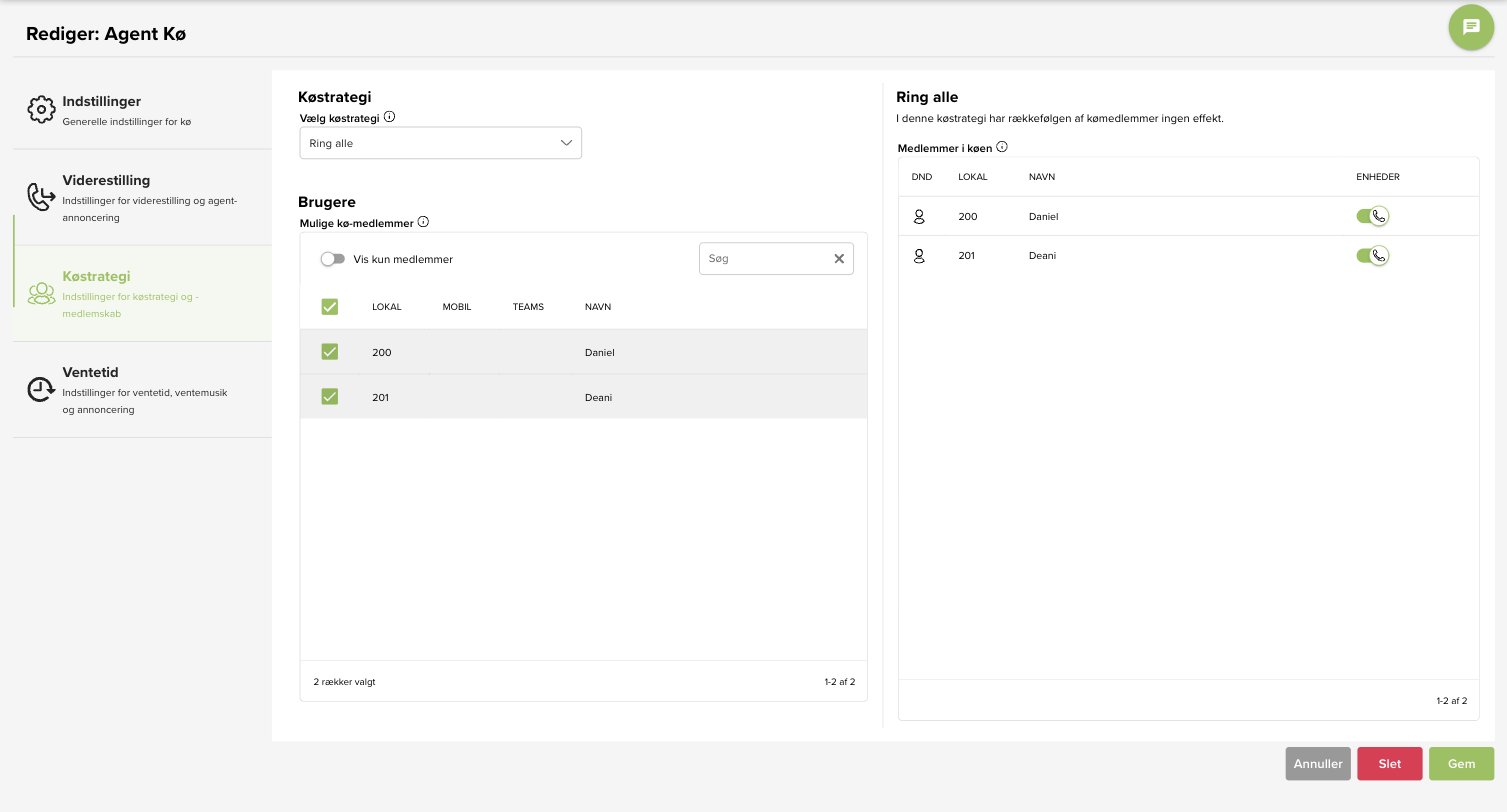 With ring all, the order of members doesn't matter – the queue rings them all, and Verbu answers on a free user.
Point your call plan or forwarding at the **queue's local number** (for example 222) – not at a single user. The queue takes care of distributing the calls.
Call in from two phones at the same time and check that the agent answers both calls.
## Common scenarios
Either the queue only has one user, or calls are pointed directly at a user instead of the queue. Check that the queue has all of the agent's users as members, and that the call plan points at the queue's local number.
All of the agent's users are busy. Add one or more extra users to the queue – each new user adds room for one more parallel call.
Check the username and password. If those are correct, check whether your OneConnect uses [netblokke](/en/pbx/unitel-netblokke) – in that case Verbu's IP address must be on the list.
## Next steps
* Using IP access lists? See [Netblokke and IP access](/en/pbx/unitel-netblokke)
* Let the agent hand calls to your team: [Forward from Verbu to OneConnect](/en/pbx/unitel-forwarding)
* The basic setup: [Unitel](/en/pbx/unitel)
With ring all, the order of members doesn't matter – the queue rings them all, and Verbu answers on a free user.
Point your call plan or forwarding at the **queue's local number** (for example 222) – not at a single user. The queue takes care of distributing the calls.
Call in from two phones at the same time and check that the agent answers both calls.
## Common scenarios
Either the queue only has one user, or calls are pointed directly at a user instead of the queue. Check that the queue has all of the agent's users as members, and that the call plan points at the queue's local number.
All of the agent's users are busy. Add one or more extra users to the queue – each new user adds room for one more parallel call.
Check the username and password. If those are correct, check whether your OneConnect uses [netblokke](/en/pbx/unitel-netblokke) – in that case Verbu's IP address must be on the list.
## Next steps
* Using IP access lists? See [Netblokke and IP access](/en/pbx/unitel-netblokke)
* Let the agent hand calls to your team: [Forward from Verbu to OneConnect](/en/pbx/unitel-forwarding)
* The basic setup: [Unitel](/en/pbx/unitel)