> ## Documentation Index
> Fetch the complete documentation index at: https://help.verbu.com/llms.txt
> Use this file to discover all available pages before exploring further.
# Netblokke and IP access
> Does your Unitel / OneConnect use netblokke (IP access lists)? Then Verbu's IP address must be added, or the connection is blocked at network level.
OneConnect can restrict which IP addresses are allowed to connect to your phone system at all. The list is called **Netblokke** and lives under **Indstillinger** (settings) in the OneConnect admin.
If the list contains any IP addresses, everything else is locked out – including Verbu. Verbu's SIP registration is then blocked at network level, and the agent can't sign in or answer calls, no matter how correct the rest of the setup is.
## Do you need to do anything?
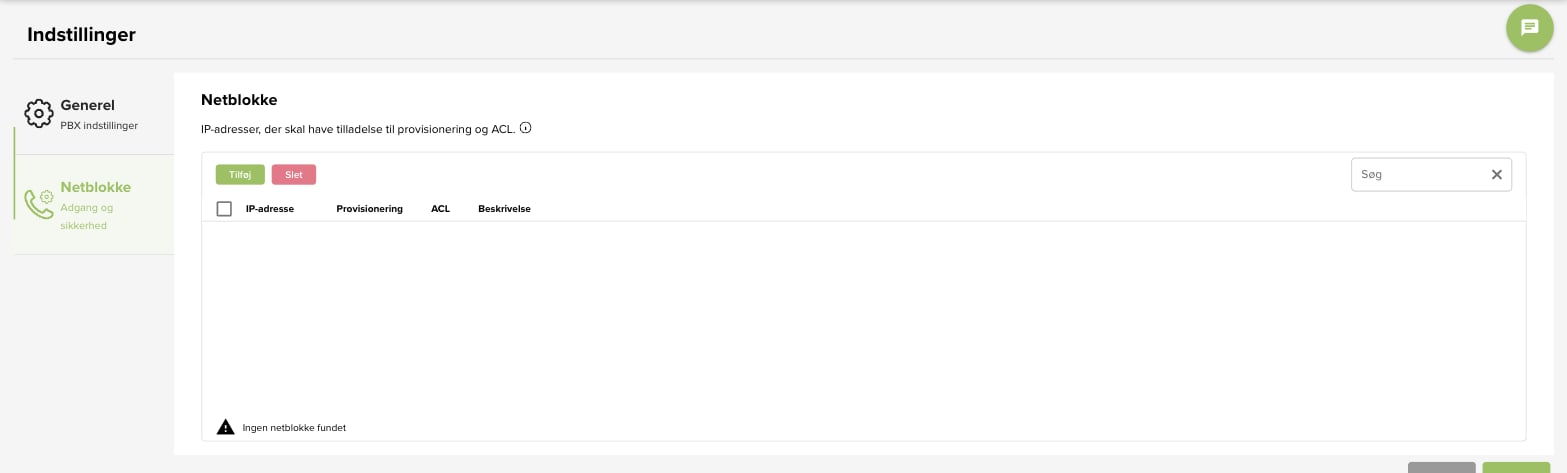
* **The list is empty** ("Ingen netblokke fundet") – there is no restriction, and you don't need to do anything.
* **The list has one or more IP addresses** – then Verbu's IP address must be added.
Verbu's IP address is:
```
46.224.173.236
```
## Steps
Sign in at `admin.one-connect.dk`, go to **Indstillinger** (settings), and pick **Netblokke** in the menu on the left.
Does it say "Ingen netblokke fundet" (no netblokke found)? Then you're done – there is no restriction.
 If there are IP addresses on the list, continue to the next step.
Click **Tilføj** (add). A new row with `0.0.0.0` appears. Click the IP address and type instead:
`46.224.173.236`
Tick **ACL**, and write something like "Verbu" in **Beskrivelse** (description) so you remember what the row is for.
If there are IP addresses on the list, continue to the next step.
Click **Tilføj** (add). A new row with `0.0.0.0` appears. Click the IP address and type instead:
`46.224.173.236`
Tick **ACL**, and write something like "Verbu" in **Beskrivelse** (description) so you remember what the row is for.
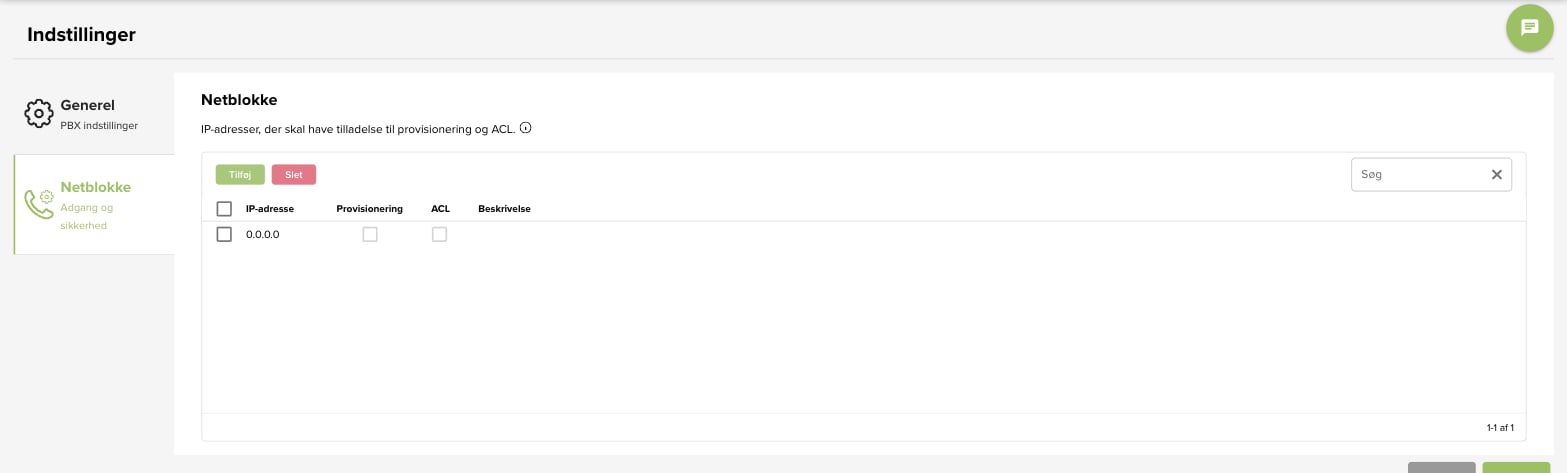 You don't need to tick **Provisionering** – that's used for setting up desk phones.
Click **Gem** (save). Verbu can now register, and the agent can answer calls.
## Common scenarios
Are the username and password correct, but registration still fails? Then netblokke is the most likely cause. Check that `46.224.173.236` is on the list with **ACL** ticked, and that the change was saved.
Check that the IP address is typed exactly right, and that you clicked **Gem** afterwards. If it still doesn't work, drop Verbu support a line – we'll look at it together with you.
## Next steps
* Set up users and a queue: [Parallel calls with OneConnect](/en/pbx/unitel-parallel-calls)
* The basic setup: [Unitel](/en/pbx/unitel)
You don't need to tick **Provisionering** – that's used for setting up desk phones.
Click **Gem** (save). Verbu can now register, and the agent can answer calls.
## Common scenarios
Are the username and password correct, but registration still fails? Then netblokke is the most likely cause. Check that `46.224.173.236` is on the list with **ACL** ticked, and that the change was saved.
Check that the IP address is typed exactly right, and that you clicked **Gem** afterwards. If it still doesn't work, drop Verbu support a line – we'll look at it together with you.
## Next steps
* Set up users and a queue: [Parallel calls with OneConnect](/en/pbx/unitel-parallel-calls)
* The basic setup: [Unitel](/en/pbx/unitel)