> ## Documentation Index
> Fetch the complete documentation index at: https://help.verbu.com/llms.txt
> Use this file to discover all available pages before exploring further.
# Gecko Booking
> Look up customers, check availability, and create bookings in Gecko Booking during a call.
When Gecko Booking is connected, your agent can do everything a receptionist would do over the phone: find the caller, check what times are open, make the booking, and confirm — live, while the caller is still on the line.
## What you'll need
* A Gecko Booking account
* An API key from Gecko Booking
Getting an API key requires Gecko Booking to enable API access on your account, which is done by email. We can do this for you — or you can do it yourself. If you'd like our help, email us at **[hello@verbu.com](mailto:hello@verbu.com)**.
## How to create the API key
Once API access is enabled, create the key like this:
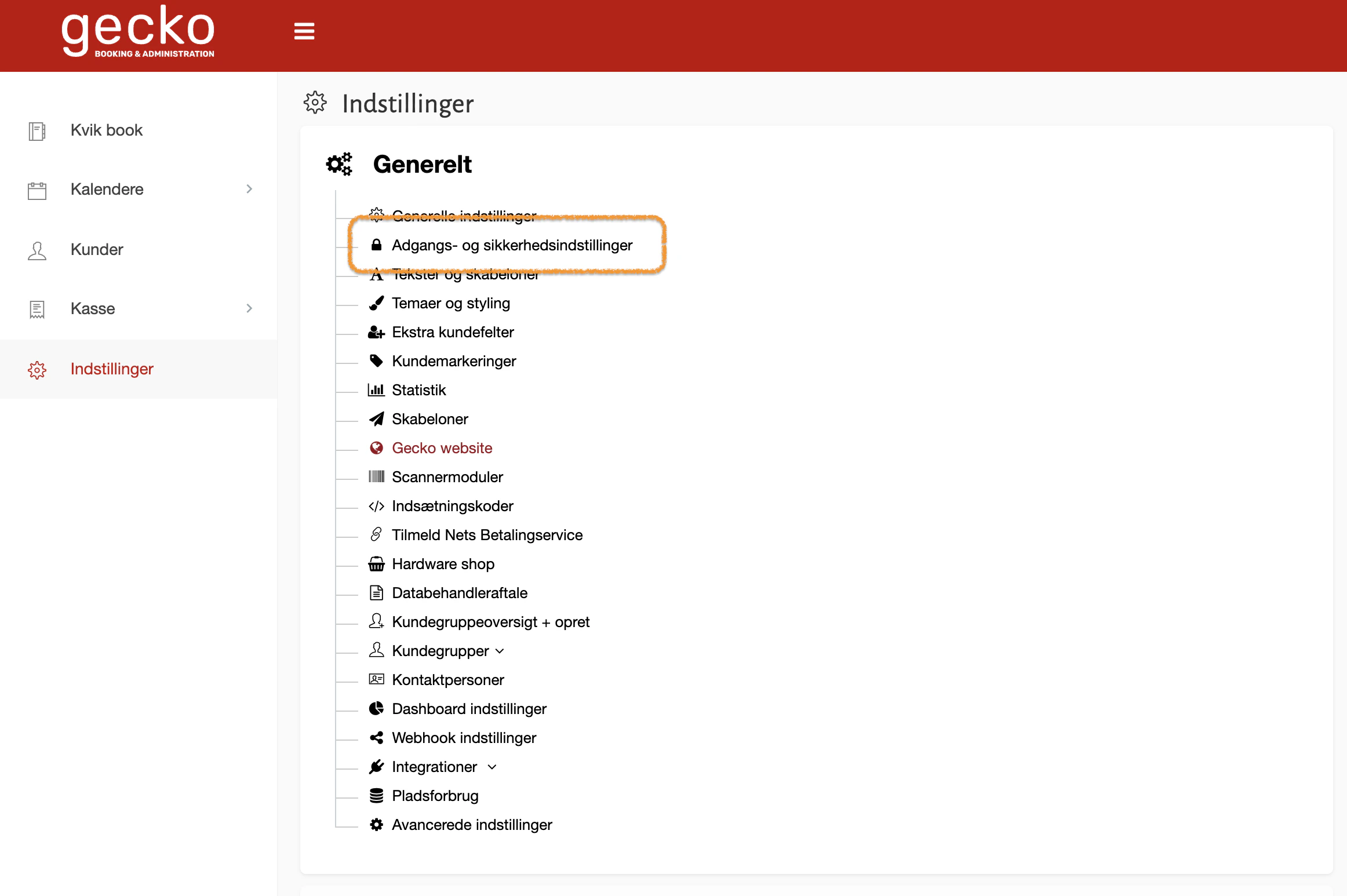
1. Open **Settings** in Gecko Booking.
2. Click **Adgangs- og sikkerhedsindstillinger** (Access and security settings).
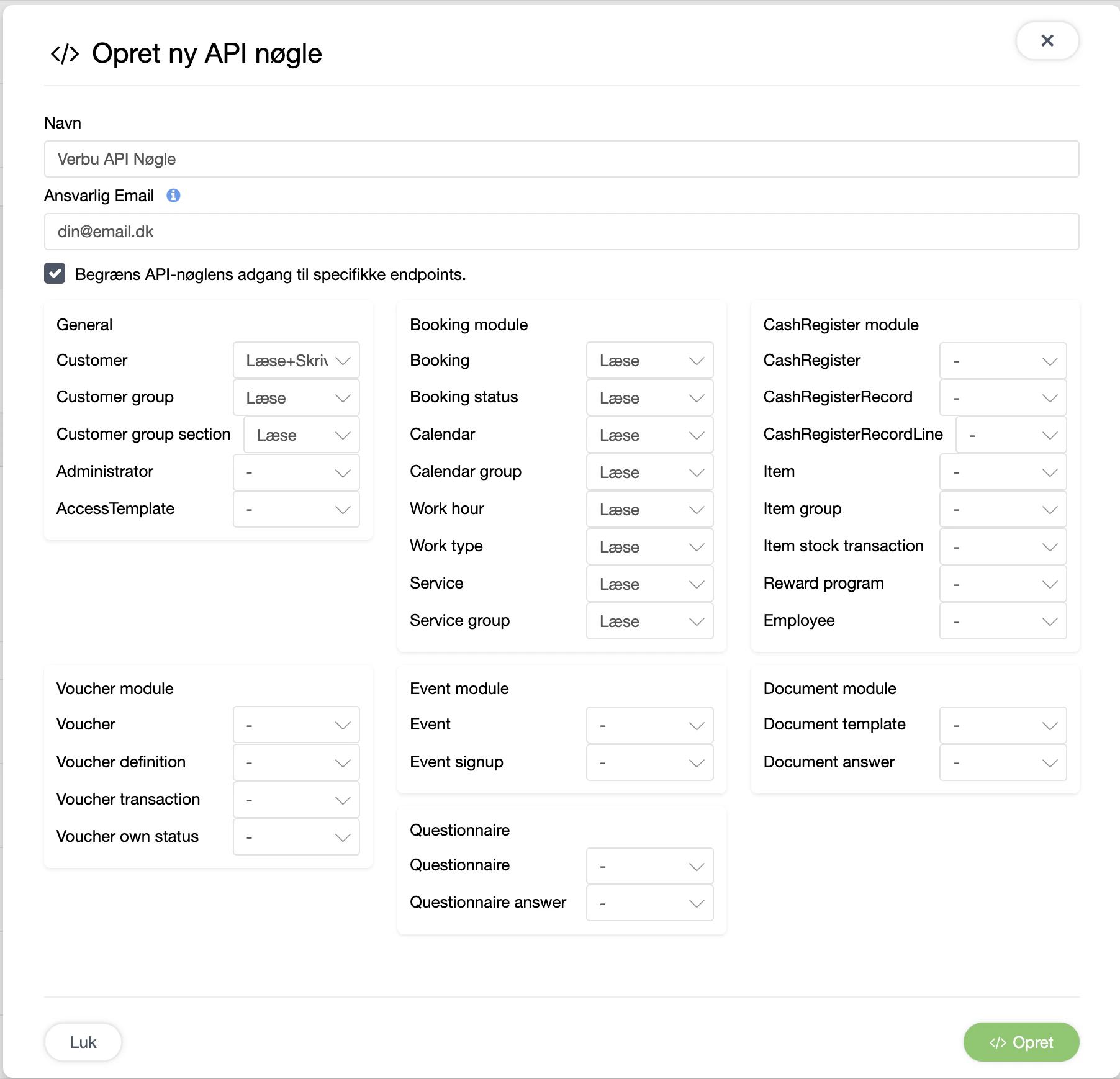
 3. Under **API-nøgler** (API keys), create a new one.
4. Use the following permissions:
3. Under **API-nøgler** (API keys), create a new one.
4. Use the following permissions:
 5. Copy the API key into Verbu.
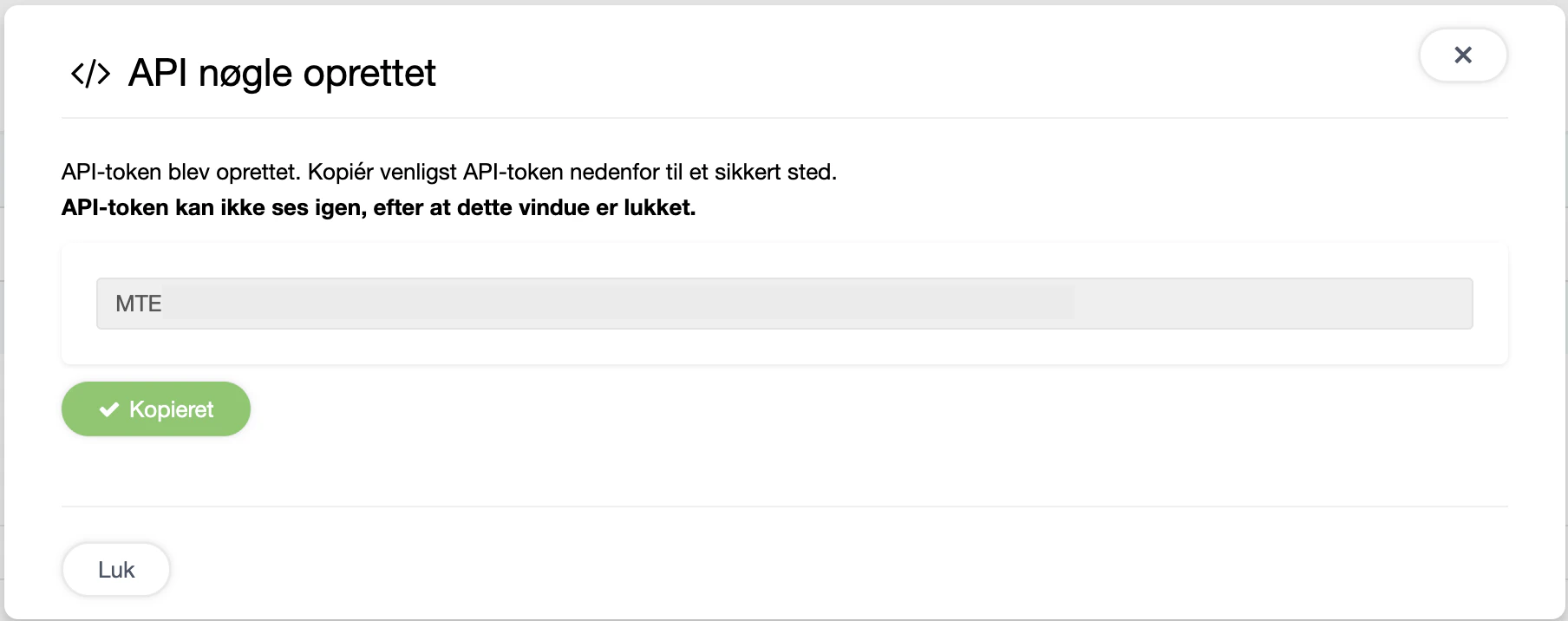 The key is only visible once. Never share it with anyone other than Verbu.
## How to connect Gecko Booking to Verbu
1. Open your agent, go to **Actions**, and open the **Integrations** tab.
2. Click **Connect** next to **Gecko Booking**.
3. Paste the URL from your browser while you're logged into Gecko Booking — only up to and including `.dk`. For example `https://app.geckobooking.dk`.
4. Paste your API key and click **Connect**.
5. Under **Setup bundles**, click **Install** next to **Time management** (Book, Reschedule and Cancel).
6. Done!
🎉 Your agent is now ready to handle bookings on the phone and in chat.
## Setting up staff-specific services
If not all staff members offer all your services, email us at **[hello@verbu.com](mailto:hello@verbu.com)**. We'll set up your services so each staff member is correctly configured. It only takes a few minutes.
## How it sounds on a call
> **Caller:** Hi, I'd like a haircut on Tuesday.
>
> **Agent:** Let me check — I have a slot at 10:00 with Maria or 14:30 with Anders. Which works better?
>
> **Caller:** 14:30, please.
>
> **Agent:** Can I take your name and a phone number?
>
> **Caller:** Lars Sørensen, 22 33 44 55.
>
> **Agent:** Booked. You'll get a confirmation by SMS. Anything else?
Everything in that flow happens in Gecko Booking, live, while the caller is on the line.
## Troubleshooting
Click **Refresh** on the integration so Verbu re-reads your calendars.
Open the integration and change the **Default customer group**.
The agent looks up customers by phone number first. If the caller is using a different phone, the agent will ask for a name or email instead.
Check that the URL was copied correctly — only up to and including `.dk`, with no trailing slash or extra text. And make sure the API key was pasted without spaces.
## Disconnecting
Open the integration and click **Disconnect**. Verbu forgets the key and stops calling Gecko Booking. Your bookings in Gecko are untouched.
## Next steps
* Try a few test calls — use the **Test** button at the top of your agent
* Set up [Pronunciation](/en/agent-behaviour/pronunciation) for staff names
* Add service descriptions to [Agent knowledge and training](/en/agent-behaviour/knowledge-and-training)
The key is only visible once. Never share it with anyone other than Verbu.
## How to connect Gecko Booking to Verbu
1. Open your agent, go to **Actions**, and open the **Integrations** tab.
2. Click **Connect** next to **Gecko Booking**.
3. Paste the URL from your browser while you're logged into Gecko Booking — only up to and including `.dk`. For example `https://app.geckobooking.dk`.
4. Paste your API key and click **Connect**.
5. Under **Setup bundles**, click **Install** next to **Time management** (Book, Reschedule and Cancel).
6. Done!
🎉 Your agent is now ready to handle bookings on the phone and in chat.
## Setting up staff-specific services
If not all staff members offer all your services, email us at **[hello@verbu.com](mailto:hello@verbu.com)**. We'll set up your services so each staff member is correctly configured. It only takes a few minutes.
## How it sounds on a call
> **Caller:** Hi, I'd like a haircut on Tuesday.
>
> **Agent:** Let me check — I have a slot at 10:00 with Maria or 14:30 with Anders. Which works better?
>
> **Caller:** 14:30, please.
>
> **Agent:** Can I take your name and a phone number?
>
> **Caller:** Lars Sørensen, 22 33 44 55.
>
> **Agent:** Booked. You'll get a confirmation by SMS. Anything else?
Everything in that flow happens in Gecko Booking, live, while the caller is on the line.
## Troubleshooting
Click **Refresh** on the integration so Verbu re-reads your calendars.
Open the integration and change the **Default customer group**.
The agent looks up customers by phone number first. If the caller is using a different phone, the agent will ask for a name or email instead.
Check that the URL was copied correctly — only up to and including `.dk`, with no trailing slash or extra text. And make sure the API key was pasted without spaces.
## Disconnecting
Open the integration and click **Disconnect**. Verbu forgets the key and stops calling Gecko Booking. Your bookings in Gecko are untouched.
## Next steps
* Try a few test calls — use the **Test** button at the top of your agent
* Set up [Pronunciation](/en/agent-behaviour/pronunciation) for staff names
* Add service descriptions to [Agent knowledge and training](/en/agent-behaviour/knowledge-and-training)